
Software guide
Getting started with AMENBREAK VST
Install AMENBREAK VST, slice a drum loop, sync it to your DAW, and make your first AMEN and BREAK variations.
AMENBREAK turns an audio file into playable slices. Start with a drum loop, get it running at your song's tempo, then use the AMEN knob to rearrange it and BREAK to introduce variations. You can do this first session in the free version.
Download and install
Download AMENBREAK VST for your computer. Choose your operating system and, on a Mac, Apple Silicon or Intel. The store selector finds the current installer; you can use the same plugin before and after buying a license.
- macOS: open the downloaded
.pkginstaller and follow its steps. It installs VST3 and Audio Unit (AU) plugins. Use AU in Logic; use VST3 in hosts that support it. - Windows: run the downloaded installer. Keep the standard VST3 location so your host can find the plugin.
- Linux: extract the archive and put the complete
.vst3bundle in~/.vst3/. Keep the bundle's contents together. - Open your DAW and rescan plugins if AMENBREAK VST does not appear. Restart the host after installation if needed.
In Ableton Live, enable VST3 system folders in the Plug-Ins preferences. In Logic, check the Plug-in Manager if the AU is missing. The walkthrough below uses the plugin inside a DAW; standalone downloads, where available, are listed on the vendor website.
Slice and play your first loop
- Create an instrument or MIDI track and load AMENBREAK. In Ableton, drop the VST3 onto a MIDI track. In Logic, choose it as an AU instrument on a software instrument track.
- Click LOAD and choose a drum-loop WAV, or drop your audio onto the waveform. Loading audio into the plugin is separate from placing an audio clip on the DAW track.
- Choose LOOPING. Set SOURCE BPM to the loop's original tempo. For example, use 170 for a loop recorded at 170 BPM; changing the song tempo does not change that original value.
- Set SLICES to 16 and click EVEN for equal divisions. Try AUTO instead when you want the markers to follow detected transients.
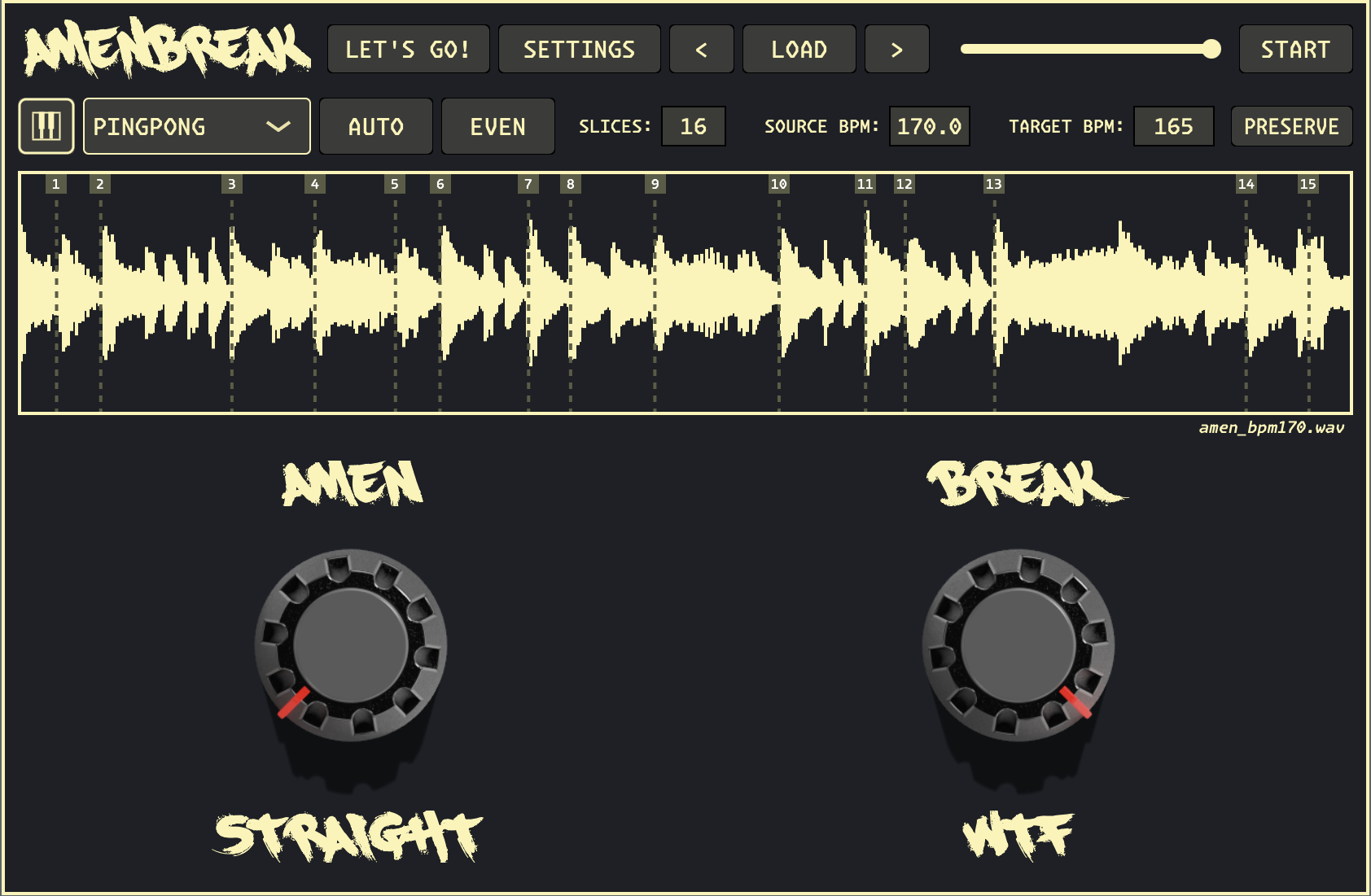
- Keep AMEN at STRAIGHT and BREAK at 0%. Click START to hear the slices in order. When the host controls transport, start the DAW too.
- Set your song tempo and check TARGET BPM. With host sync it follows the DAW. Without PRESERVE, changing the tempo also changes pitch; that is normal in the free version.
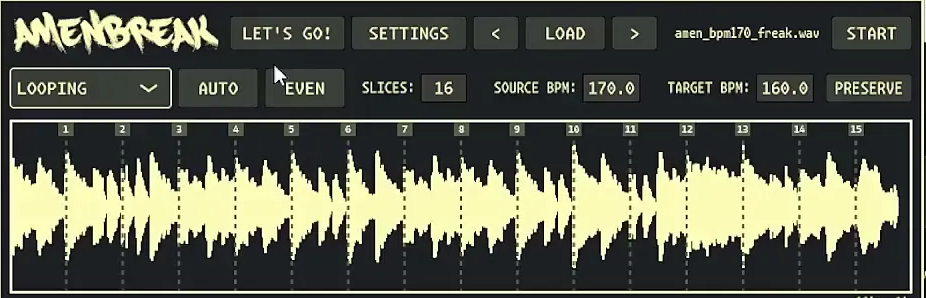
Click a slice to preview it. If host playback does not start the sequence, open SETTINGS and check DAW TRANSPORT: use INTERNAL for this walkthrough. MIDI ONLY is for sequencing slices from MIDI notes.
Make a variation with AMEN and BREAK
Turn AMEN away from STRAIGHT to choose a repeating pattern of randomly selected slices. A short pattern makes the repetition easy to hear. Use the reroll button to get a different selection without loading another sample.
Bring BREAK up a little while the loop plays. It increases the chance of reverse, stutter, and stretch events. Turn it back to 0% to hear the underlying pattern again. Keep changing one knob at a time until you can hear what each one does.
Return AMEN to STRAIGHT whenever you want the slices back in their original order. The same audio file can supply both the steady groove and its interruptions.
Find the essential controls
- AUTO / EVEN: detect transients or divide the sample equally. Check the resulting markers before performing.
- Playback mode: LOOPING repeats; PINGPONG reverses direction at the boundaries; one-shot modes play a slice or sample once.
- SOURCE / TARGET BPM: describe the original file and the desired playback tempo.
- PRESERVE: keep the original pitch while matching tempo. This requires a license.
- LET'S GO! / CAREFUL!: switch between the two large performance knobs and the detailed effect controls.
- XFADE: overlap slice transitions. Short fades keep cuts sharp; longer fades soften them.
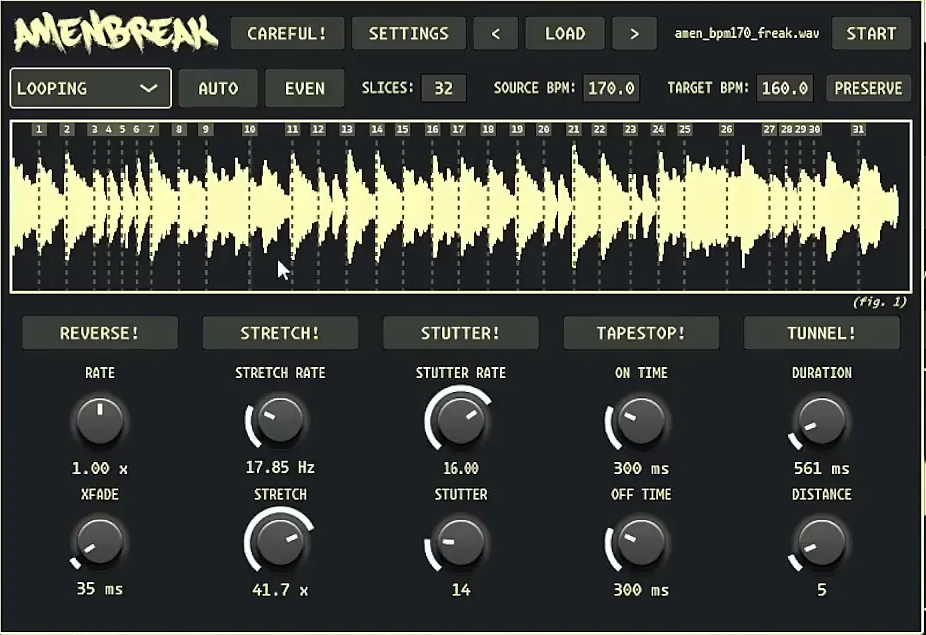
Try STUTTER! for repeated fragments or TAPESTOP! for slowing and restarting playback. The free version includes the mono slicing engine, AMEN/BREAK, stutter, and tape-stop. A license adds stereo output, pitch preservation, tunneling, and premium effects.
Play slices from MIDI
Send notes from your instrument track to trigger slices. Notes wrap around the available slices, so the mapping depends on how many slices you have. For a piano-roll workflow, set DAW TRANSPORT → MIDI ONLY in SETTINGS so the internal sequencer does not duplicate the MIDI triggers.
The keyboard icon lets you drag the current sequence into your DAW as a MIDI clip. The vendor's MIDI drag-out walkthrough explains the full workflow. Use the MIDI reference for note behavior and CC mapping.
Activate your license
Get your AMENBREAK VST license when you are ready to unlock the paid features. Sign in to your store dashboard with the email used for your purchase. Copy the matching key and paste it into the plugin's license dialog, then activate it. Key validation needs an internet connection.
You can also choose Download License in the dashboard. Keep the filename license.json and place it in the matching configuration folder:
- macOS:
~/Library/Application Support/AMENBREAK/ - Windows:
%APPDATA%\AMENBREAK\ - Linux:
~/.config/AMENBREAK/
Create the product folder if it does not exist, then reopen the plugin. Each plugin uses its own license file and folder. If your purchase has not appeared yet, check the purchase email and make sure the dashboard is signed in with that same address.
If something is not working
- No sound: load a sample into AMENBREAK, check the track output and plugin volume, then try START with the host playing. An empty plugin does not make sound from MIDI alone.
- The groove drifts or sounds pitched: check the original SOURCE BPM, target tempo, and transport mode. Pitch changes with playback speed unless licensed PRESERVE is enabled.
- Two patterns play together: use MIDI ONLY when your MIDI clip is doing the sequencing.
- Missing plugin: rescan the installed format. Logic needs AU; a VST3 host needs the VST3 version.
- Bitwig suspends playback: the vendor recommends setting the device's Suspend option to Never.
For an activation error, check the key and connection, then keep the exact error message for support.
Go further
Continue with the full AMENBREAK manual or the production workflow for slice editing, crossfades, presets, and detailed effects. For help, email zack@infinitedigits.co with your plugin version, operating system, and DAW.