
Software guide
Getting started with One-Bit Delay
Install One-Bit Delay, make your first echoes, and shape their tone, feedback, and noise with the essential controls.
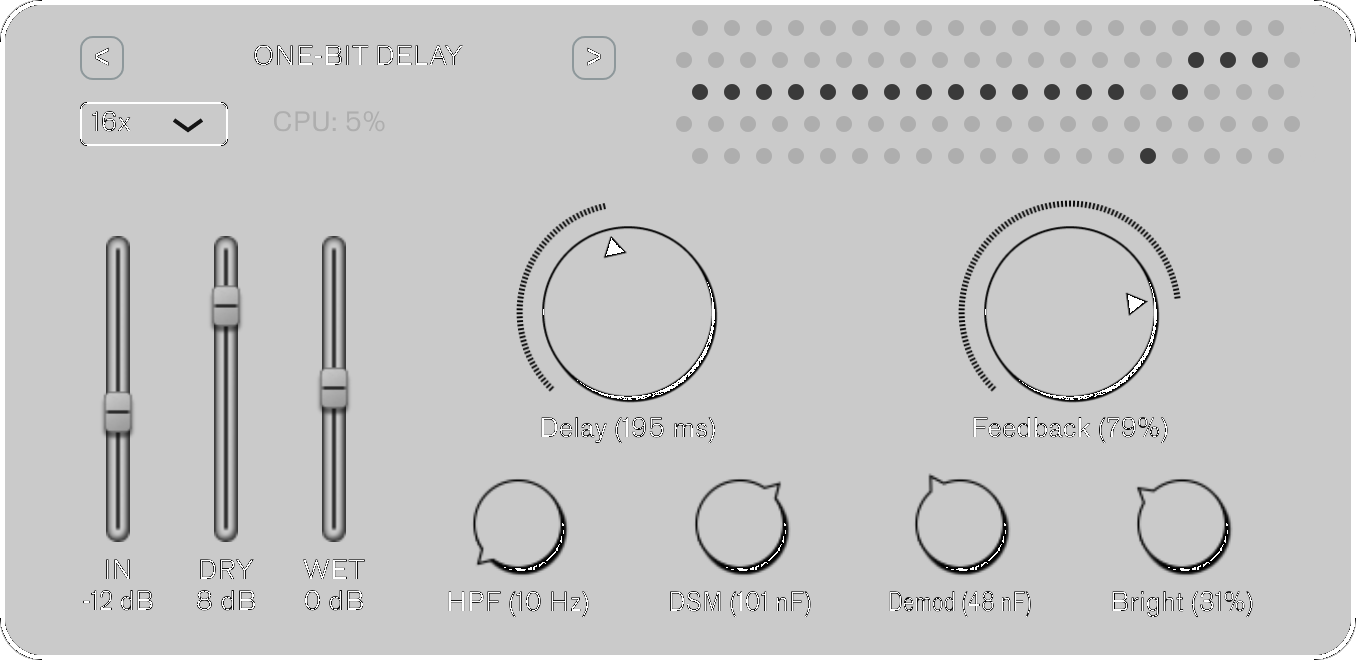
One-Bit Delay makes echoes through a model of a one-bit delay circuit. Its repeats change character as you change the delay time: dark, grainy, noisy, or pushed into feedback. Start with a modest repeat level and get to know the two large knobs.
Download and install
Download One-Bit Delay for your computer. Choose your operating system and, on a Mac, Apple Silicon or Intel. The store selector finds the current installer; you can use the same plugin before and after buying a license.
- macOS: open the downloaded
.pkginstaller and follow its steps. It installs VST3 and Audio Unit (AU) plugins. Use AU in Logic; use VST3 in hosts that support it. - Windows: run the downloaded installer. Keep the standard VST3 location so your host can find the plugin.
- Linux: extract the archive and put the complete
.vst3bundle in~/.vst3/. Keep the bundle's contents together. - Open your DAW and rescan plugins if One-Bit Delay does not appear. Restart the host after installation if needed.
In Ableton Live, enable VST3 system folders in the Plug-Ins preferences. In Logic, check the Plug-in Manager if the AU is missing. The walkthrough below uses the plugin inside a DAW; standalone downloads, where available, are listed on the vendor website.
Make your first echoes
- Put a drum loop, voice, or instrument recording on an audio track and insert One-Bit Delay after the sound source. In Ableton it is an audio effect; in Logic choose the AU in an Audio FX slot.
- Turn your listening level down before adjusting feedback. Start with IN around −12 dB, DRY at 0 dB, and WET around −12 dB.
- Set Feedback to 20% and choose a short or medium Delay setting. The demo snaps Delay and Feedback to a selection of values; that stepping is expected.
- Play the track. Bring WET up until the repeats are clear beside the original signal.
- Change Delay and listen to both the spacing and the texture of the repeats. Increase Feedback gradually to hear a longer tail.
- Bring Feedback back to zero when you want to stop feeding the repeats back into the delay.
This walkthrough works in the demo. A license removes the demo's stepped Delay and Feedback restrictions. You do not need to activate it before making your first echoes.
Balance input, dry, and wet
IN drives the delay's input stage. Raising it can make the repeats denser and more distorted. DRY controls the direct signal; WET controls the delay output. These are separate level controls, so changing one does not automatically compensate the others.
On an insert, keep some DRY signal so the original sound remains present. On a send/return track, turn DRY all the way down and use the DAW's send level to feed the delay. This avoids adding another copy of the direct sound.
Shape the repeats
- Delay: sets repeat spacing in milliseconds. Longer times also change the internal clock and can produce dirtier repeats.
- Feedback: sends the delayed signal back through the circuit. Higher settings extend the tail and can reach self-oscillation.
- HPF: removes low frequencies from the feedback path. Raise it when bass keeps building up across repeats.
- DSM: shapes filtering around the one-bit encoding stage. Use it to explore smoother or grainier texture.
- Demod: shapes filtering as the bitstream becomes audio again. It can tame fizz or open up detail.
- Bright: changes the output tone of the repeats. Turn it down for darker echoes, or up for clearer ones.
For darker echoes, start with moderate feedback and turn Bright down. For a swelling tail, increase Feedback slowly while keeping WET low enough to control the output. Reduce Feedback to stop regeneration, and lower WET if the sound is already too loud.
Choose noise and CPU balance
The one-bit conversion produces noise as part of the circuit's sound. The oversampling menu in the upper left offers 1×, 2×, 4×, 8×, 16×, and 32×. Start at the default 16×. Higher oversampling can reduce noise, but it asks more of your CPU.
If you hear crackles from CPU overload, try a lower oversampling setting or a larger DAW audio buffer. If you want a rougher texture, lower oversampling deliberately and listen to how it changes the noise. The plugin's built-in noise and audio-buffer dropouts are different problems.
Activate your license
Get your One-Bit Delay license when you are ready to unlock the paid features. Sign in to your store dashboard with the email used for your purchase. Copy the matching key and paste it into the plugin's license dialog, then activate it. Key validation needs an internet connection.
You can also choose Download License in the dashboard. Keep the filename license.json and place it in the matching configuration folder:
- macOS:
~/Library/Application Support/ONEBITDELAY/ - Windows:
%APPDATA%\ONEBITDELAY\ - Linux:
~/.config/ONEBITDELAY/
Create the product folder if it does not exist, then reopen the plugin. Each plugin uses its own license file and folder. If your purchase has not appeared yet, check the purchase email and make sure the dashboard is signed in with that same address.
If something is not working
- No echoes: check that audio reaches the plugin, IN is audible, and WET is raised. The plugin needs an incoming sound.
- No direct sound: check DRY and the track's output routing. A fully wet send/return is expected to omit the direct signal.
- Knobs jump between values: Delay and Feedback use stepped values in the demo. Activate a license for unrestricted adjustment.
- Feedback gets loud: reduce Feedback and WET; lower IN for less drive. Start the next experiment at a lower listening level.
- Missing plugin: check the format and rescan your host after installing.
- Bitwig performance: the vendor recommends setting the device's Suspend option to Never.
If activation fails, check the matching key and internet connection and save the exact error message.
Go further
The One-Bit Delay website explains the signal path, one-bit conversion, and comparison with real delay chips. For support, email zack@infinitedigits.co with the plugin version, operating system, DAW, and the settings that reproduce the problem.