
Software guide
EZEPTOCORE & Ectocore for VCV Rack
Install Rack on Windows, macOS, or Linux, load a prepared sample folder, and make your first clocked stereo patch in either panel form.
Put a loop in a rack, give it a clock, and start pulling it apart. EZEPTOCORE for VCV Rack brings the sample playback, slice sequencing, and effects of the hardware into a software module. It also has a blue Ectocore form. You can switch between the two while keeping the same sound and cables.
This guide starts with installing Rack and ends with a small patch: a VCV LFO supplies the clock, EZEPTOCORE plays the samples, and VCV Audio sends the result to your speakers. No Eurorack case or physical SD card is needed.
Install the plugin
The Infinite Digits plugin is not in the VCV Library yet, so install it manually. If you do not have Rack 2, install Rack first, then return here.
Download the ZIP for your system from the current _core release, v8.1.0. The plugin has its own version number, 2.0.2:
| Platform | Download |
|---|---|
| macOS (Apple Silicon) | InfiniteDigits-2.0.2-mac-arm64.zip |
| macOS (Intel) | InfiniteDigits-2.0.2-mac-x64.zip |
| Windows (x64) | InfiniteDigits-2.0.2-win-x64.zip |
| Linux (x86_64) | InfiniteDigits-2.0.2-lin-x64.zip |
- Unzip the download: on Windows, right-click it and choose Extract All; on macOS, double-click it; on Linux, use your archive manager's Extract command. Each bundle contains a
.vcvpluginfile, matching source, and installation notes. Only the.vcvplugingoes into Rack. - In Rack, choose Help → Open user folder, then quit Rack. Copy the
.vcvplugininto the folder below, creating theplugins-…folder if needed. These are the default locations; use the folder opened by Rack if yours differs.
| System | Plugin folder |
|---|---|
| Windows | %LOCALAPPDATA%\Rack2\plugins-win-x64\ |
| macOS (Apple Silicon) | ~/Library/Application Support/Rack2/plugins-mac-arm64/ |
| macOS (Intel) | ~/Library/Application Support/Rack2/plugins-mac-x64/ |
| Linux | ~/.local/share/Rack2/plugins-lin-x64/ |
Open Rack again. It extracts the .vcvplugin and loads the module automatically; leave that file intact when copying it. Then add EZEPTOCORE. VCV's manual covers plugin installation, and its FAQ lists the user folders.
Screenshots below show Rack Free 2.6.6 and Infinite Digits 2.0.0.
Download and install VCV Rack
Get VCV Rack 2 Free from the official VCV Rack download page. The standalone Free edition is enough for this guide. The module's initial target is Rack 2.6.6 or a later compatible Rack 2 release.
Choose the download for your operating system:
| System | Install and open |
|---|---|
| Windows | Download the Windows installer, run it, and follow the installer steps. Launch VCV Rack 2 Free from the Start menu or desktop shortcut. |
| macOS | Download the macOS .pkg installer. The current Rack 2.6.6 installer includes both Intel and Apple Silicon builds. Open it and follow the installer steps, then launch Rack from Applications. |
| Linux | Download the Linux ZIP and extract it. Install zenity through your distribution's package manager if it is missing. Open the extracted Rack folder and run the Rack executable, or open a terminal in that folder and run ./Rack. Keep the extracted files together. |
VCV maintains the current system requirements and installation instructions. Installing Rack alone does not install the Infinite Digits module.
Add the module
Once the plugin is installed, right-click an empty part of the rack to open the module browser. Search for EZEPTOCORE, choose the Infinite Digits module, and place it in the rack.
Add LFO by VCV and Audio 2 by VCV as well. Their panels read LFO and AUDIO. These are the clock and stereo output used in the screenshots. Leave a little space around the sampler so you can follow the cables.
Rack's basic gestures are small but useful: drag a knob up or down to turn it, right-click a knob to type a value, and drag between two jacks to patch a cable. Right-click the module's background for its settings. VCV's getting started guide covers moving modules and editing cables.
Load a sample folder
The module reads folders prepared by the _core sample manager. Use a project on your computer, or a copy of a prepared EZEPTOCORE or Ectocore SD card. Keep the whole folder: the primary WAV files, their .info metadata, and settings belong together. Current playback uses live granular Time Stretch; stretched companion files from older projects are ignored.
- Open or create a project in the sample manager. Import your audio, set up its slices and source tempo, and wait for Ready. For a first listen with factory sounds, use Project → Default samples → Ezeptocore or Ectocore in sample manager v8.1.0; it downloads and opens a new project in Downloads. The default-sample walkthrough explains both collections.
- In Rack, right-click the EZEPTOCORE panel and choose Choose sample folder….
- Select the project's root folder: the folder containing
bank1, any other banks, andsettings. Do not selectbank1itself or an individual WAV file. - Wait for the bank to load. Turn TUNNEL to select a sample and click BANK to move between banks. In the Ectocore form, TUNNEL is called Sample.
The Rack module does not convert ordinary audio files on its own or bundle samples. Prepare your sounds in the sample manager or use one of its default projects first. There can be up to 16 banks with 16 sample slots in each bank; the module's menu shows the current bank and sample number.
The folder is opened for reading only. Changing the module's settings in Rack does not rewrite your sample-manager project or SD card.
Connect the stereo output
Start with your listening level low. Patch L OUT → Audio L/MON and R OUT → Audio RIGHT. Use the upper input jacks on Audio 2; the lower pair brings audio from your sound device into Rack.
Click Audio's display and select the driver and the device you want to hear:
| System | Audio driver |
|---|---|
| Windows | WASAPI, or ASIO if your audio interface has an ASIO driver. |
| macOS | Core Audio, then your speakers, headphones, or audio interface. |
| Linux | ALSA or JACK, according to your audio setup. |
Raise Audio's LEVEL gradually. Both meter columns should respond when the module is playing. If audio crackles, try a larger block size in the Audio settings. VCV explains the device, sample-rate, and buffer controls in its Audio module manual.
For an uncomplicated first listen, turn AMEN and BREAK fully left and put JUMP in the center. In the Ectocore form, center Random instead of JUMP. These positions give you the original slice order without random breaks. Click TAP if playback is stopped or waiting at startup. Repeated taps set the internal tempo, so you can listen before connecting an external clock.
Patch a clock
The module's CLK IN expects two pulses per quarter note, often written 2 PPQN. At 120 BPM, that is four pulses per second.
- On the VCV LFO, right-click FREQ and enter 4 Hz. Leave its own CLK input unpatched.
- Patch the LFO's SQR output to the sampler's CLK IN, at the bottom left of the panel.
- Keep the two audio cables connected to Audio 2. Allow a few pulses for the module to follow the clock.
| Cable | From | To |
|---|---|---|
| Clock | VCV LFO SQR | EZEPTOCORE / Ectocore CLK IN |
| Left audio | EZEPTOCORE / Ectocore L OUT | VCV Audio 2 L/MON |
| Right audio | EZEPTOCORE / Ectocore R OUT | VCV Audio 2 RIGHT |
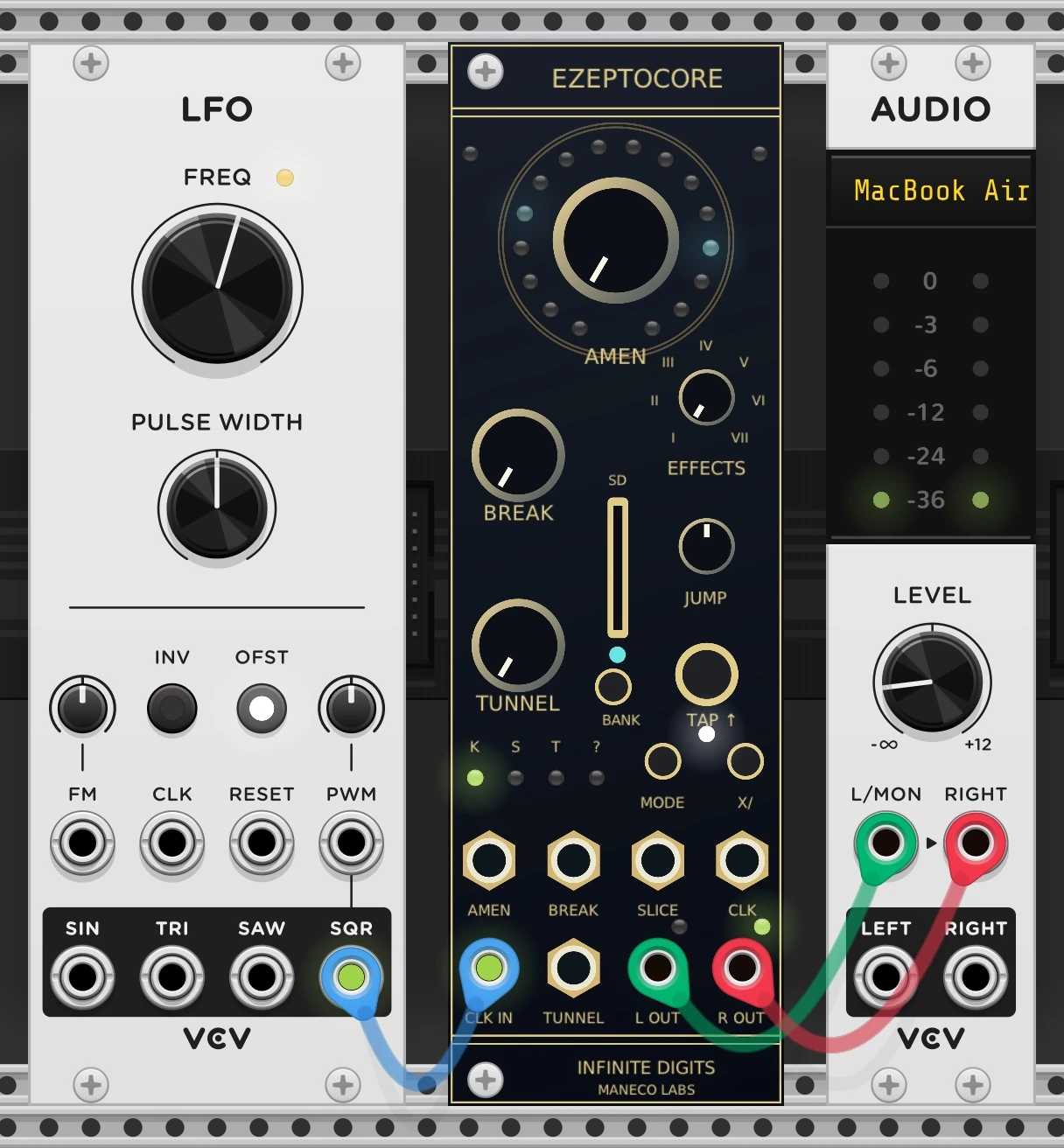
For another tempo, set the LFO frequency to BPM ÷ 30. For example, 90 BPM needs 3 Hz and 150 BPM needs 5 Hz. A dedicated clock module works too: set its output to two pulses per quarter note.
Do not confuse CLK IN with CLK in the row above it. CLK is an output for clocking other modules. X/, called MULT on the Ectocore panel, changes that output's clock ratio. In Device settings, Stop when clock stops controls whether playback stops when an attached clock stops sending pulses.
With Stop when clock stops enabled, clock output also falls to 0 V after the external clock times out. Enable it on every sampler in a clock chain to pass stops along the chain. A returning clock restarts playback at the beginning.
Switch to the Ectocore form
Right-click the sampler's background and enable Ectocore appearance. Disable it to return to EZEPTOCORE.
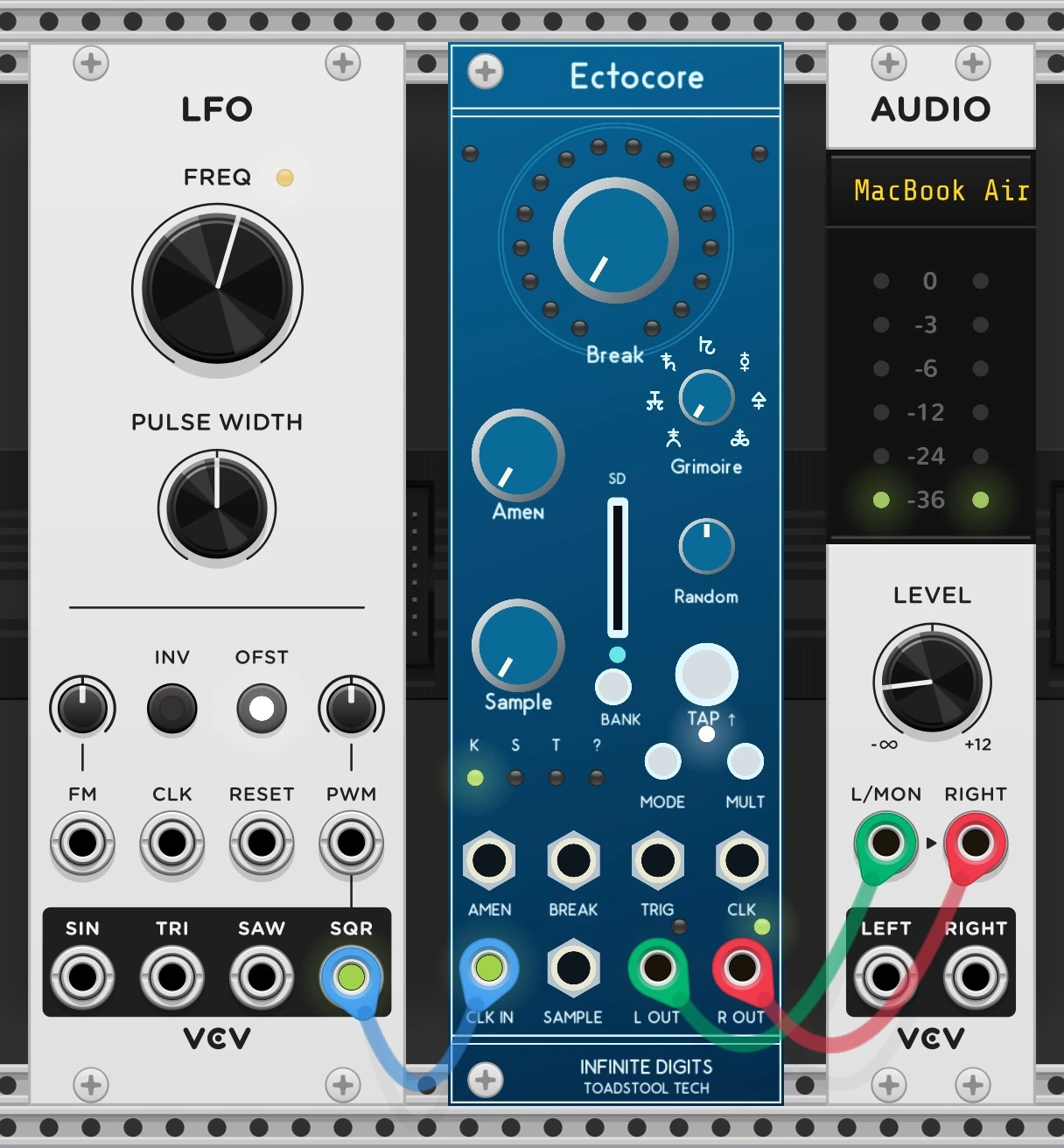
This is one module with two panel layouts. Switching forms keeps the parameters, cables, sound, and saved automation attached to their original functions. Read the labels after switching: AMEN and BREAK exchange positions and sizes.
| EZEPTOCORE label | Ectocore label | What it does |
|---|---|---|
| AMEN | Amen | Changes the slice sequence and repeat behavior. |
| BREAK | Break | Sets the probability of effects from the selected effect bank. |
| EFFECTS | Grimoire | Chooses one of seven effect banks. |
| JUMP | Random | Controls jump probability or the Amen CV range, depending on the mode and patch. |
| TUNNEL | Sample | Selects the sample; hold BANK while turning it to select a bank. |
| X/ | MULT | Multiplies or divides the CLK output. |
| SLICE | TRIG | Outputs transient triggers. This is an output, not an audio input. |
Try one change at a time. Choose an effect bank with EFFECTS / Grimoire, then bring up BREAK. Return BREAK fully left and turn AMEN to explore slice patterns. Move JUMP / Random away from center when you want the sequence to wander.
Use button combinations with a mouse
The hardware's button combinations also work here. To hold a button while clicking another control:
- Right-click the button and select Temporarily hold. An orange outline marks the held button.
- Click the other button or turn the knob you want to use with it.
- Release it from the same menu, or right-click the panel and choose Release held buttons.
For example, temporarily hold TAP and click X/ / MULT to stop playback. Release the hold, then click TAP to resume. Hold TAP and turn BREAK to change the module's volume; farther clockwise also adds saturation and distortion. With an external clock connected, TAP + MODE realigns the pattern to beat one.
Button holds clear when Rack loses focus, when a patch loads, and when the module reboots. They are not saved in the patch. If a knob seems to be doing a different job, release any held buttons first.
For the deeper performance combinations, see the EZEPTOCORE controls and the Ectocore guide. Hardware mounting, power, firmware flashing, and SD-card removal instructions do not apply to the Rack module.
Add CV and edit effects
Once the simple patch makes sense, add modulation to AMEN, BREAK, or TUNNEL / SAMPLE. CV means control voltage: another module's signal moves a musical control for you. Try a slow LFO through an attenuator into BREAK to vary how often effects happen.
Right-click the panel and open Device settings to choose CV polarity, Amen CV behavior, sample selection mapping, reset-input assignment, clock behavior, and LED brightness. The module's nominal CV ranges are −5 to +5 V for bipolar inputs and 0 to +5 V for unipolar inputs. Attenuate a wider signal before using it if you want the full motion to stay within those ranges.
Grimoire / effect banks edits which of the sixteen effects belong to each of the seven banks. The EFFECTS / Grimoire knob selects the bank; BREAK controls how likely its effects are to fire. The SLICE / TRIG and CLK outputs can send transient and clock pulses to other modules when you want to grow the patch.
Choose startup behavior
In plugin 2.0.2, right-click the panel and choose Device settings → Startup playback → Wait for clock or button to open a patch silently, even if it was playing when saved. Clock and trigger outputs stay at 0 V until the first incoming clock pulse or a click on TAP starts playback. The setting also applies when attaching the module's first sample folder and when using Reboot module.
The preference is saved per module in the patch. Changing it during a session, reloading or switching sample folders, and importing settings do not stop or start current playback. Save the patch and reopen it, or choose Reboot module, to apply the startup choice. Once playback starts, Stop when clock stops controls clock loss as usual. Play immediately (default) retains the usual saved transport behavior, including a saved stopped state.
Device settings → Start tempo controls the initial tempo separately. Default (no override) retains the usual tempo behavior. For a fixed starting tempo, enter a whole-number BPM from 30 to 300 and press Enter. It applies on patch open, first or different sample-folder selection, and reboot; normal TAP tempo and external clock sync still work afterward.
Save the patch and keep the samples
Use File → Save As to save a .vcv patch. Rack saves the panel choice, controls, selected bank and sample, device settings, effect banks, and other musical state. The audio files stay in their separate folder; they are not packed into the .vcv file.
Keep that sample folder when moving or sharing a patch. If its location changes, use Choose sample folder… to point the module to its new home. Loading a patch restores from a loop boundary, following its Startup playback preference; it does not resume a frozen reverb tail or the exact sample position.
After editing samples in the sample manager, wait for preparation to finish and choose Reload sample folder in Rack. Reloading keeps your patch's device settings. Import settings from sample folder replaces those settings and effect banks with the folder's versions. Choosing a different folder also imports that folder's settings.
If something is quiet or missing
| What you see or hear | What to check |
|---|---|
| EZEPTOCORE is missing from the module browser | Install the Infinite Digits plugin for your OS and CPU, then restart Rack. Installing Rack alone will not make it appear. |
| The module is present but there is no sound | Choose a prepared sample folder, select a populated bank and slot, and check the panel's right-click menu for loading errors. Confirm playback is running, both audio cables reach Audio's upper inputs, and Audio has a driver and output device selected. |
| A patch opens silently with no clock or trigger output | Check Device settings → Startup playback. With Wait for clock or button, click TAP or send a clock pulse to start. |
| Playback stops when the clock stops | Check Device settings → Stop when clock stops. For free-running playback, remove the CLK IN cable and use the internal tempo. |
| Playback follows the wrong tempo | Check the source's pulse rate. CLK IN expects 2 PPQN; the example LFO is 4 Hz for 120 BPM. If another module follows the sampler's CLK output at the wrong rate, check X/ / MULT. |
| A folder loads only some samples | Read the module menu's error message. Invalid entries are skipped while valid ones remain available. Reopen the project in the sample manager and wait for Ready so the primary WAV files and metadata finish saving. |
| A patch loses its samples after moving computers | Move the complete sample folder too, then relink it with Choose sample folder…. |
| A knob changes volume or pitch unexpectedly | Use Release held buttons to clear a temporary modifier. |
Save the plain clock-and-output patch before adding more modulation. It gives you a useful place to return when the loop has become something you can no longer explain.
Made by Infinite Digits
Get the hardware

Eurorack sampler
EZEPTOCORE
Bring the sample playback, slice sequencing, and effects from this patch into your Eurorack case.